How to Change Your Minecraft Java Server Version
BEFORE PROCEEDING, BACK UP YOUR SERVER FILES TO YOUR DEVICE! ZAMPTO.NET is not responsible for any data loss.
Youtube video: https://www.youtube.com/watch?v=8Zwfd8dOxh0
You can change the version of your Minecraft Java server in two different ways:
🔹 Method 1 — The Easiest: Using the Software Manager (File Manager)
-
Open the Web File Manager for your Minecraft Java server.
-
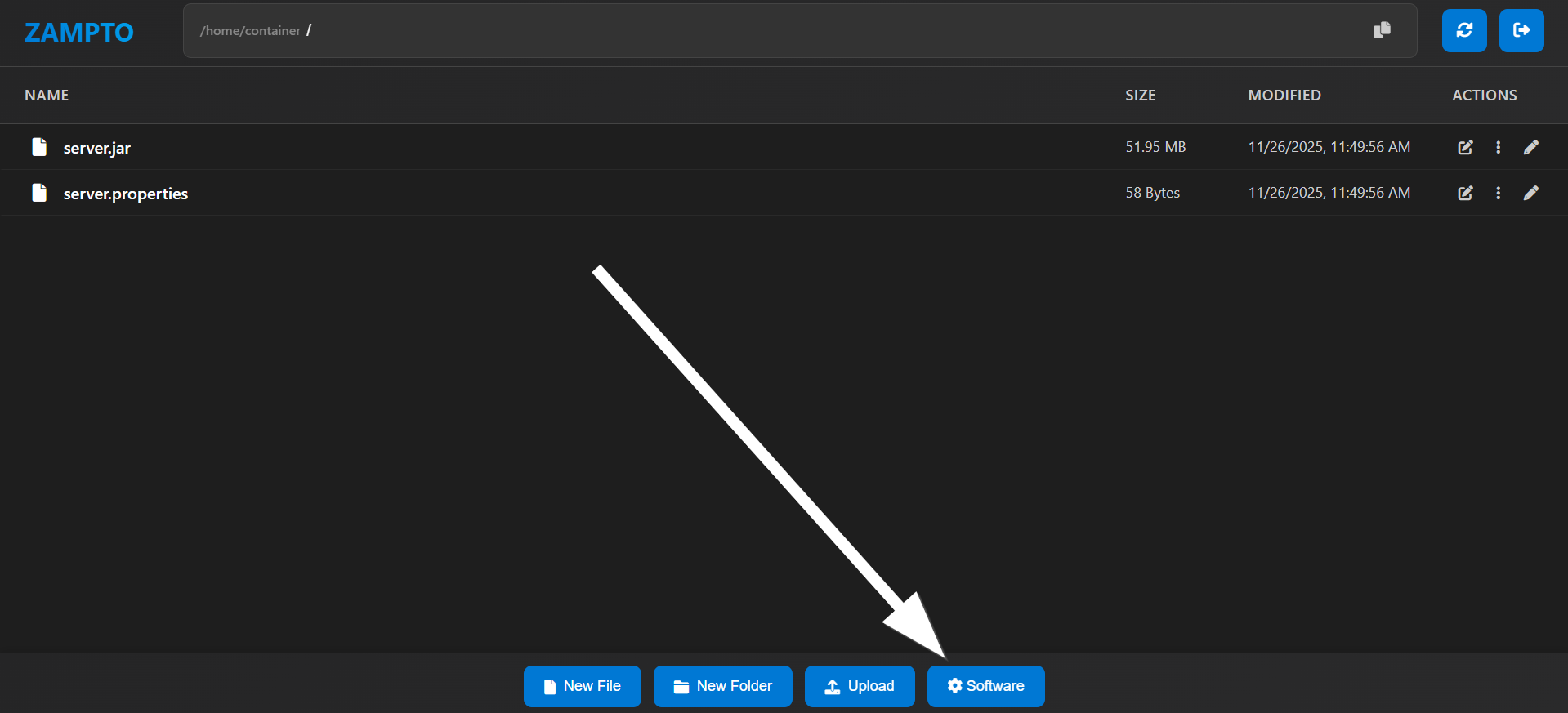
If your server supports the feature, on a computer you should see a button called Software (usually next to the Upload button).
-
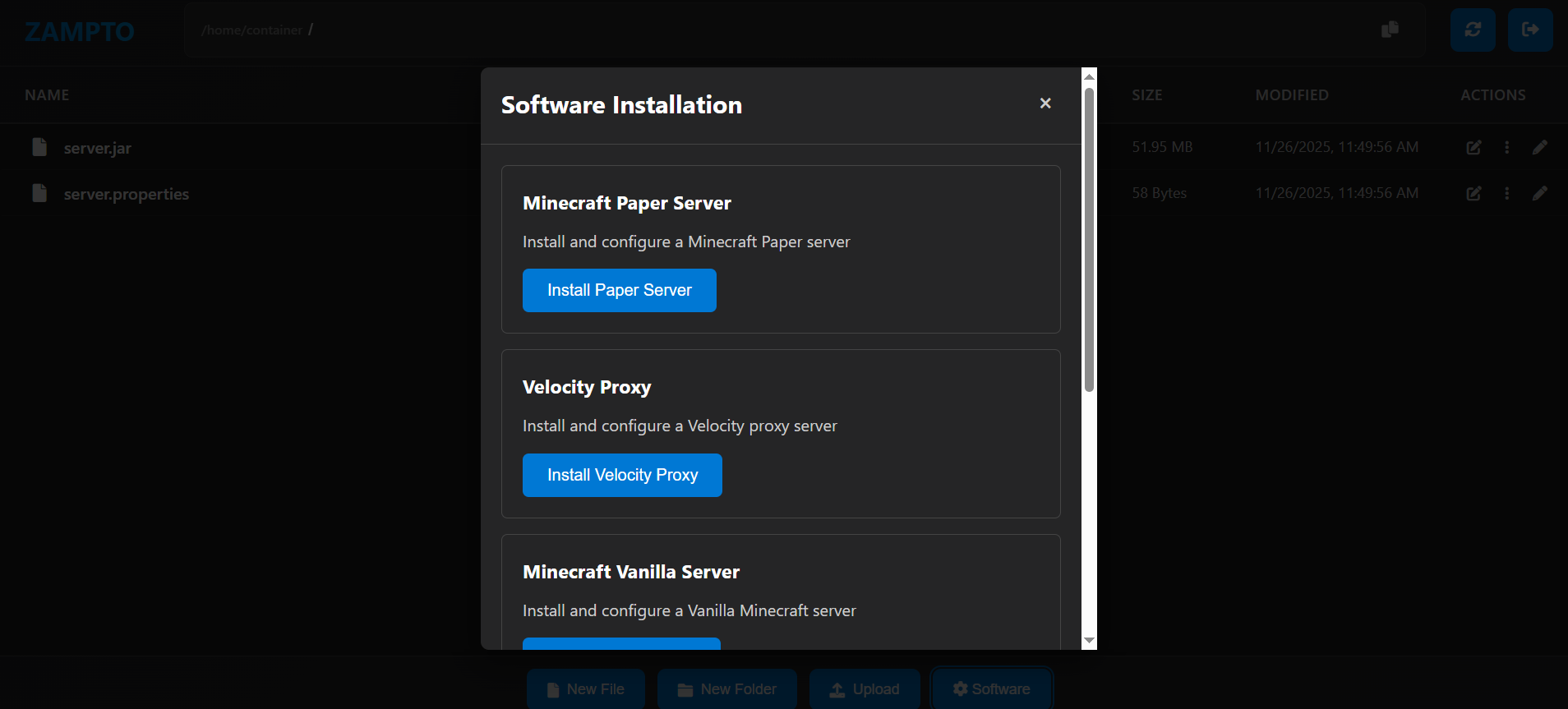
Click the Software button and choose the server type you want: Minecraft Vanilla, Spigot, Paper, Fabric, and others.
-
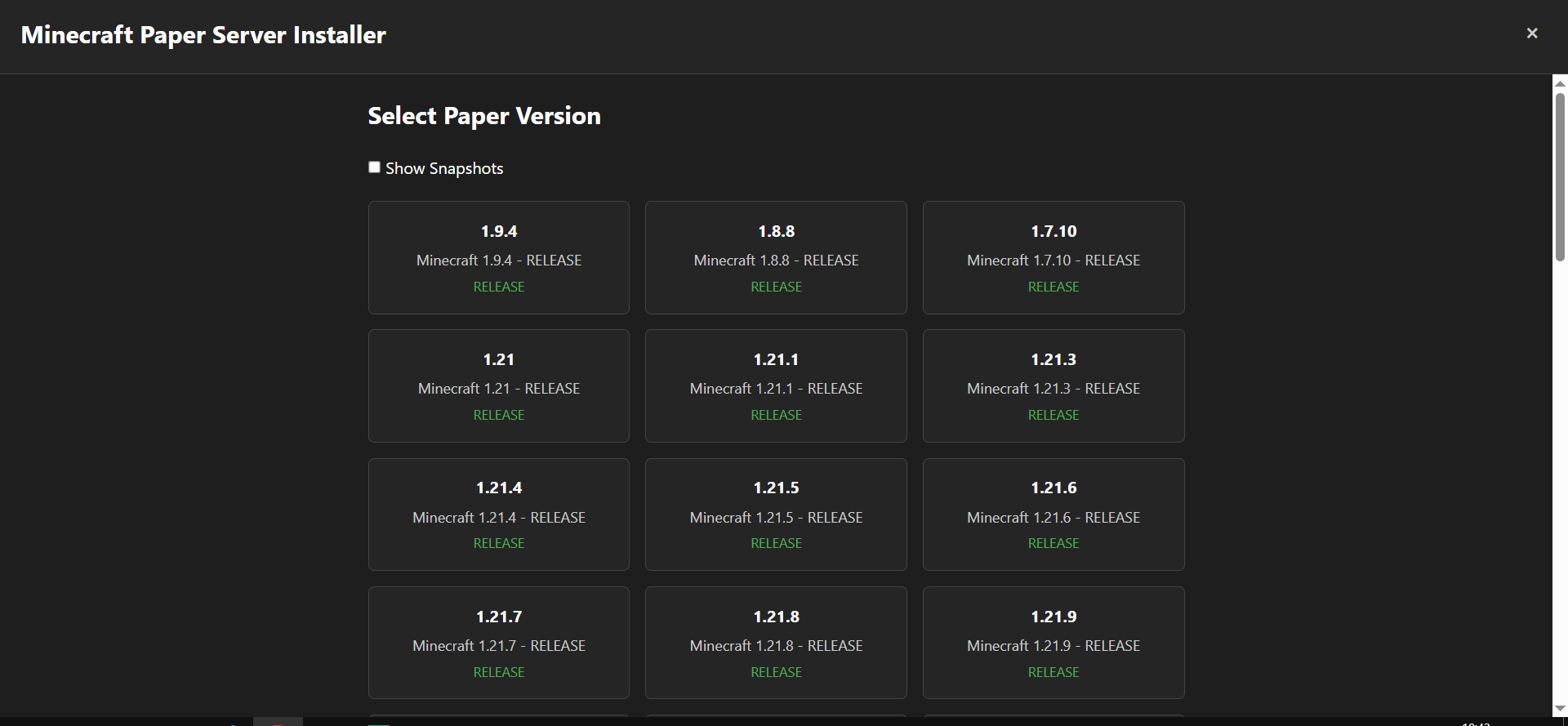
Once the Software Manager/Selector opens, select the version and, if required, the build.
-
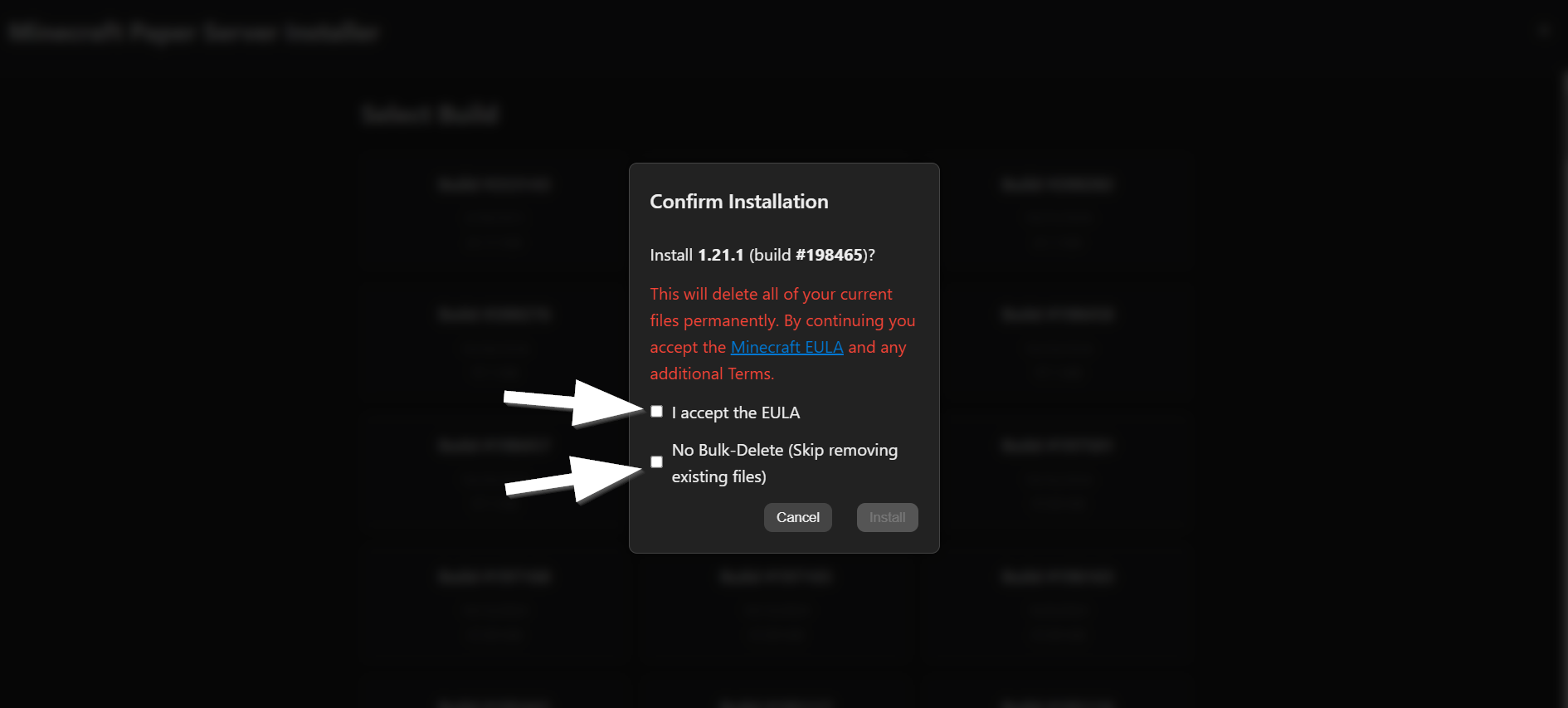
To only change the JAR without deleting your files, make sure you enable: “No Bulk-Delete — Skip removing existing files”
Always take a backup first (preferably downloaded to your own device).
-
Click Install and wait for the installation to finish.
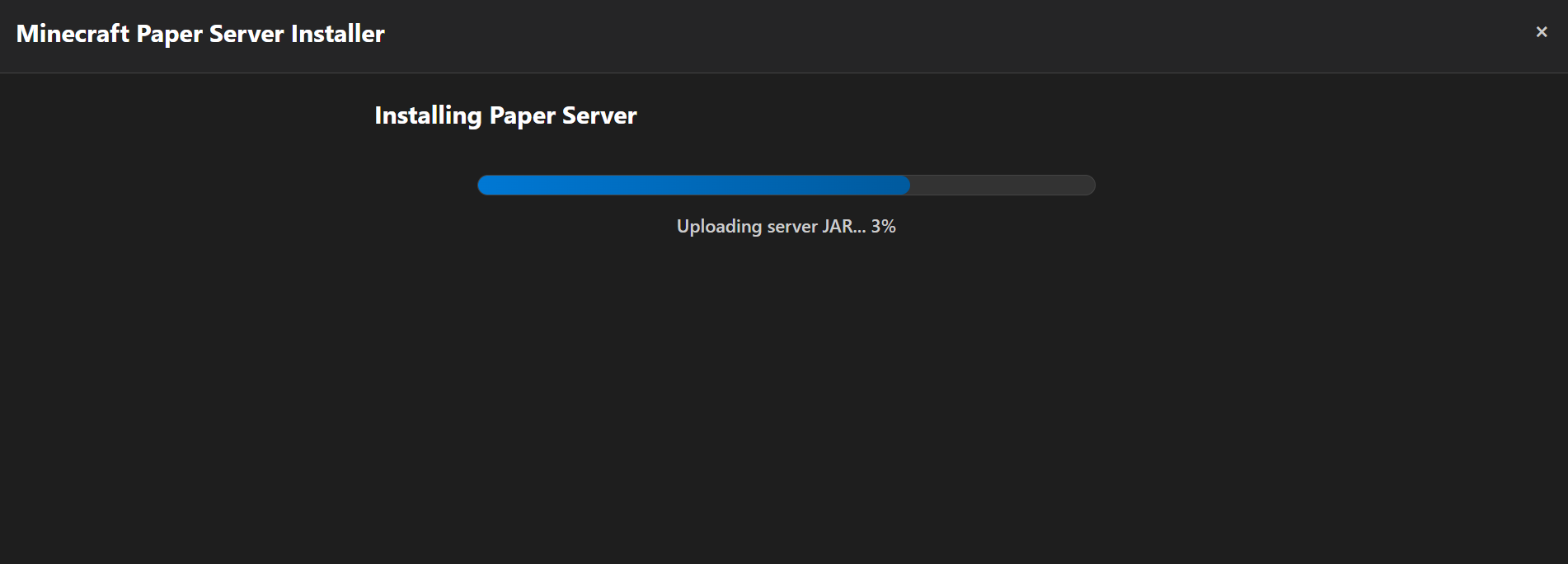
-
Once completed, return to your Console and start your server. It should now use the new server JAR.

🔹 Method 2 — Manual Installation
This method is recommended if: ✔ Your server type is not in the Software Installer ✔ You prefer full manual control
Steps:
-
Download the server JAR you want on your device.
-
Upload it to
/or/home/container/using the File Manager or SFTP. -
Go to your server Startup page in the panel.
-
Update the Docker Image to the correct Java version needed by your server.
-
Update the Server JAR Name field so it matches the JAR you uploaded.
-
Start your server and check if everything works correctly.
🛠 Common Issues & How to Fix Them
❌ 1. Wrong Java Version
Some Minecraft versions require specific Java releases.\ Example: Minecraft 1.21.4 does not support Java 8, but requires Java 21.
✔ Go to Startup → Change Docker Image to the correct Java version.
❌ 2. EULA Not Accepted (eula.txt error)
Minecraft Java servers must have the EULA accepted to start.
If not, you may see errors like:
[Server thread/WARN]: Failed to load eula.txt
[Server thread/INFO]: You need to agree to the EULA in order to run the server.
[Server Shutdown Thread/INFO]: Stopping server
✔ How to Fix
-
Open eula.txt in your File Manager
-
Change this line:
eula=falseTo:
eula=trueSave → Restart your server 🎉