How to Install a Plugin on a Minecraft Java Server
To install plugins on your Minecraft Java server (Bukkit, Spigot, Paper, etc.), there are two available methods:
-
Installing plugins using the built-in plugin installer provided by Zampto.net.
-
Manually uploading
.jarplugin files into the server'spluginsfolder.
Follow the steps below:
Method 1: Installing Plugins Using the Zampto.net Plugin Installer
Installation Steps
-
Log in using the following link:
-
Create a Minecraft server , if you need help, we have a generic guide for that:
Create and Host a Minecraft Java Server
- Make sure to create the server using the Minecraft Java Generic server type.
-
Once your Minecraft server has been created, open the Control Panel.
From the sidebar, navigate to the Software section under the Minecraft Java category and install the software you want to use, for example:
-
Minecraft Spigot 1.21.1
-
Minecraft Paper 1.21.5
-
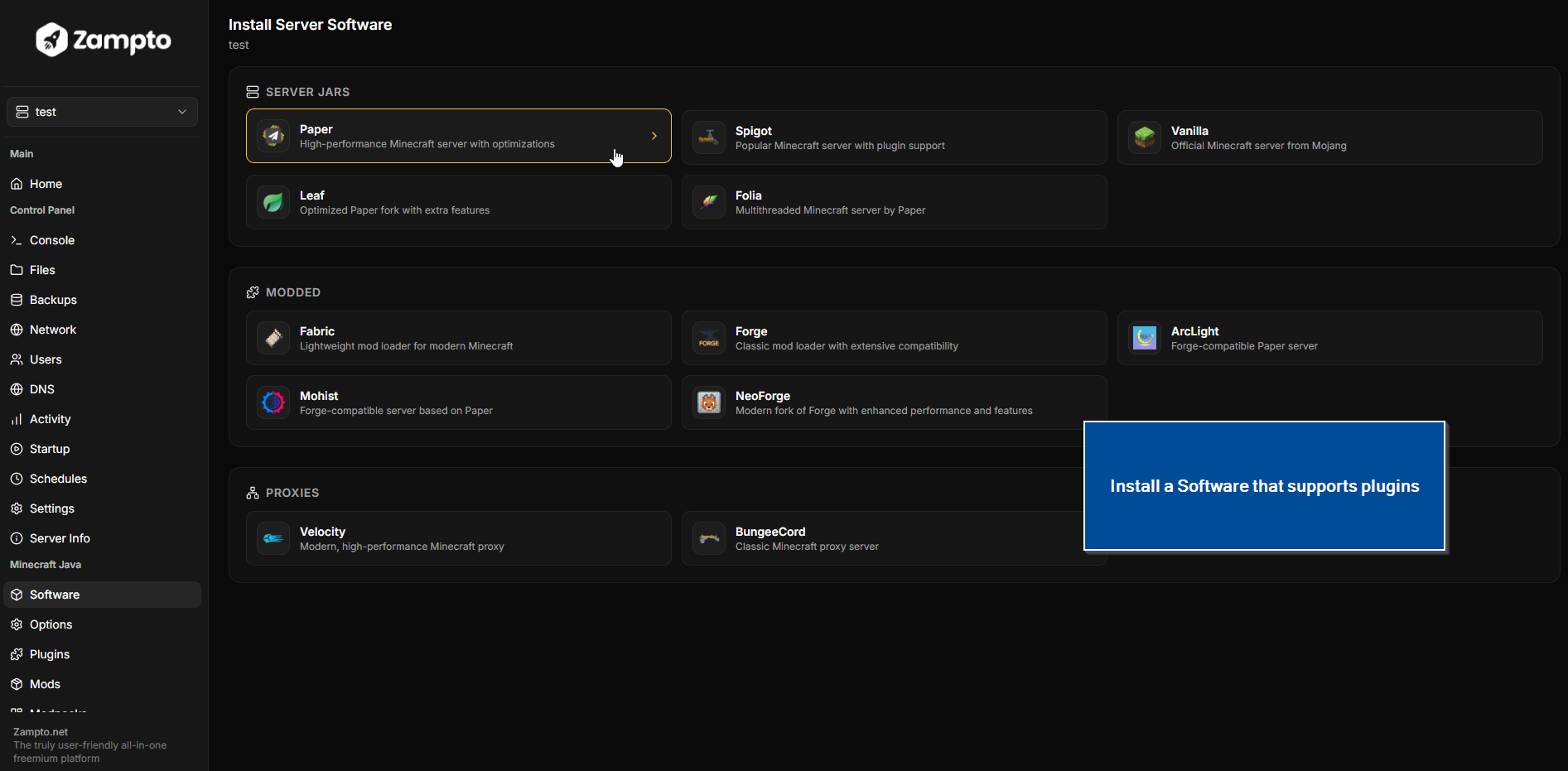
Select the Minecraft version:
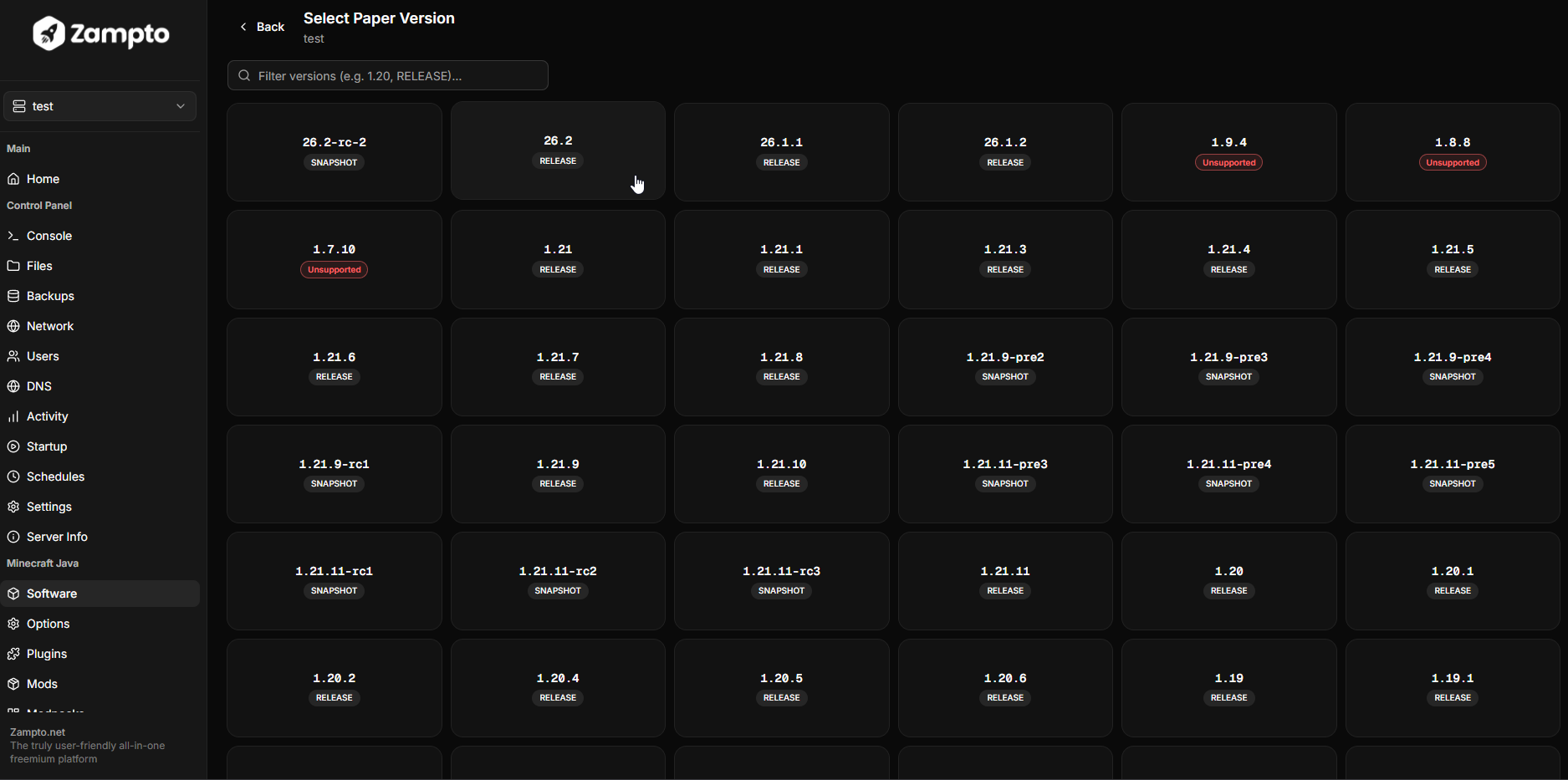
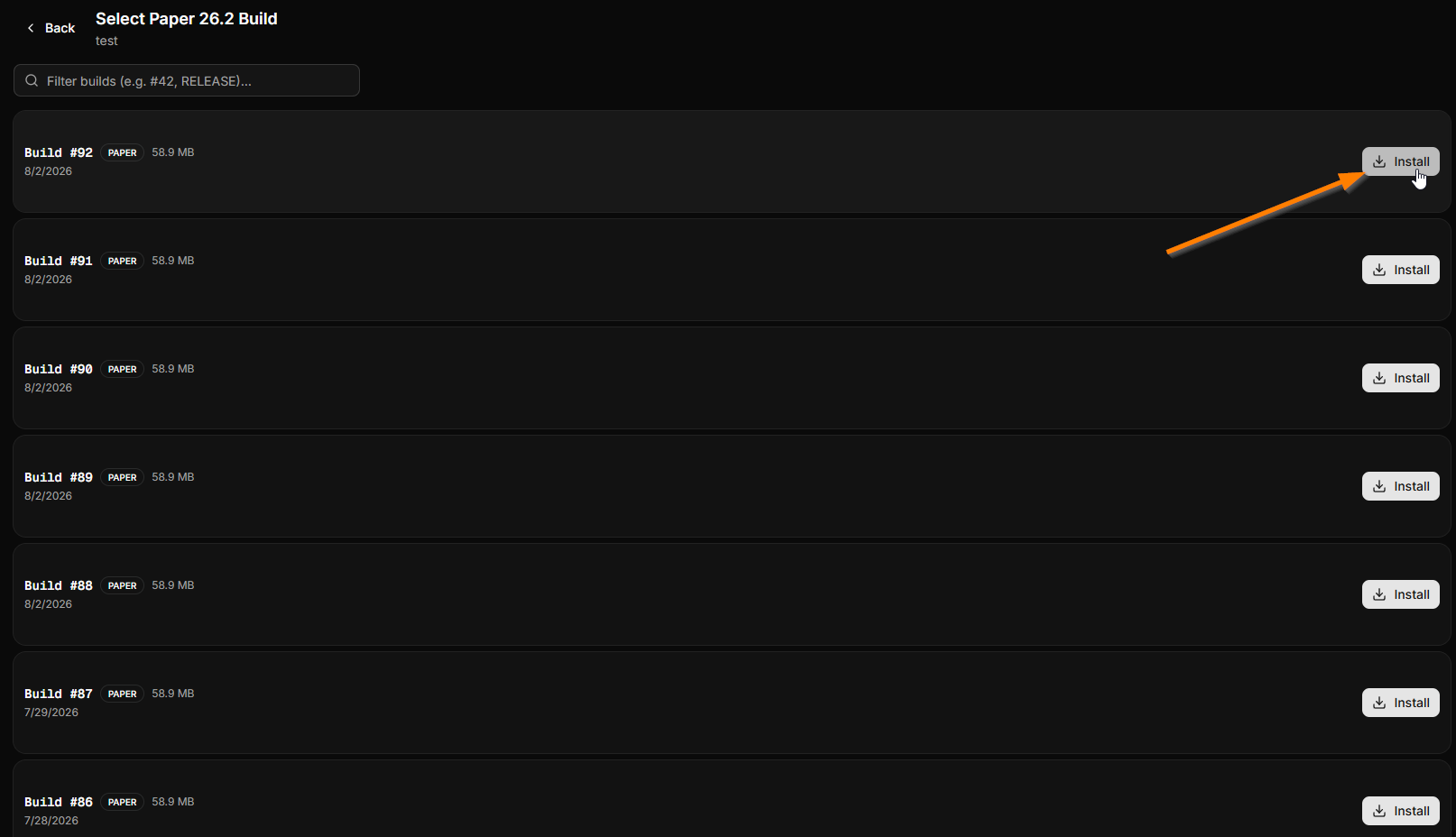
Select the software build you want to install.
When ready, click the Install button. Usually, the latest version (the first option) is recommended.
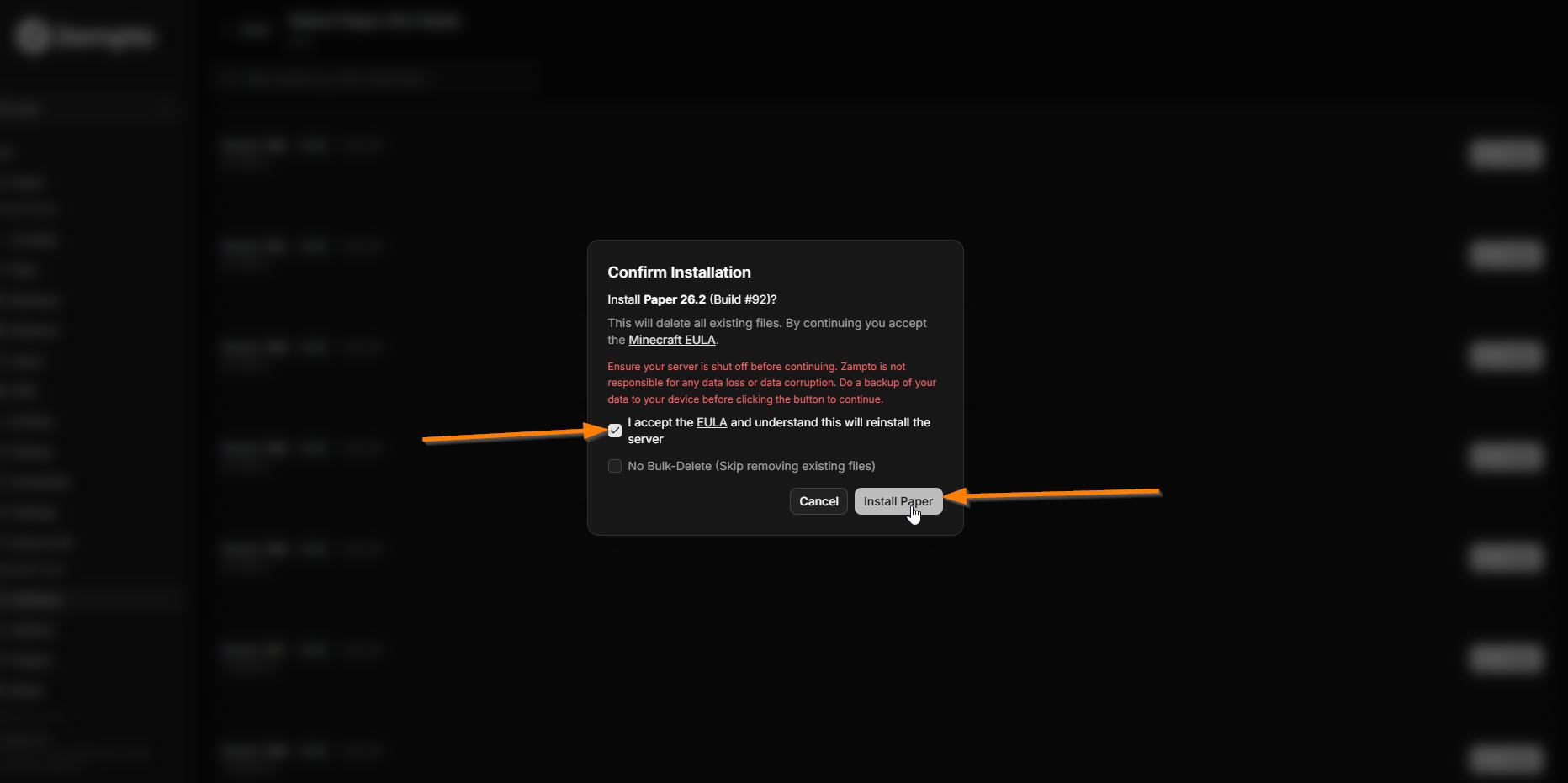
Confirm the installation:
-
You must accept the Minecraft EULA.
-
If you do not want Zampto.net to delete all existing server files before installation, enable the "No Bulk-Delete (Skip removing existing files)" option.
This option is usually recommended when updating an existing server from an older version to a newer one.
-
After the software installation is complete, go to the Plugins page.
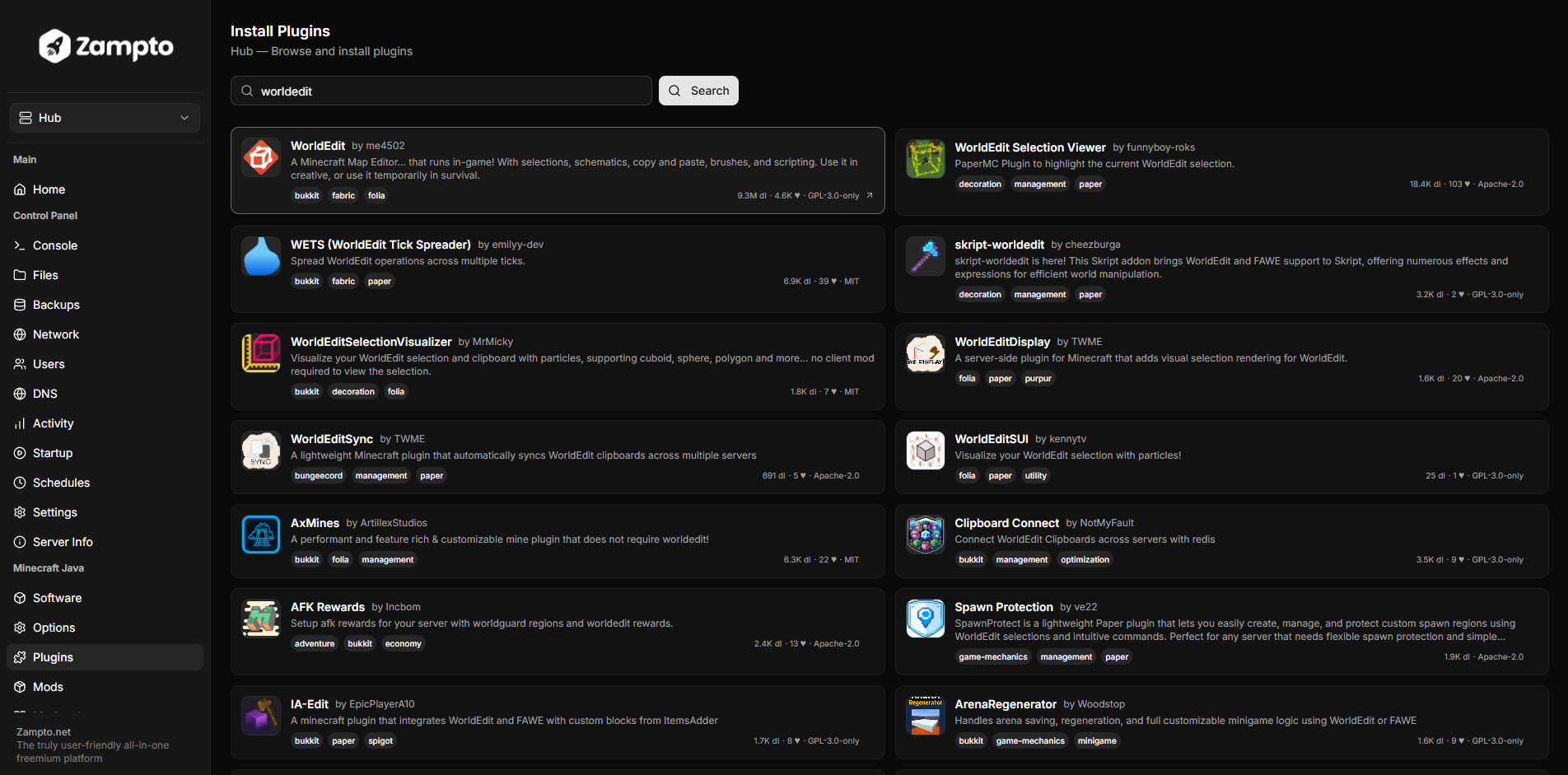
Use the "Search Plugin..." search bar to find the plugin you want to install.
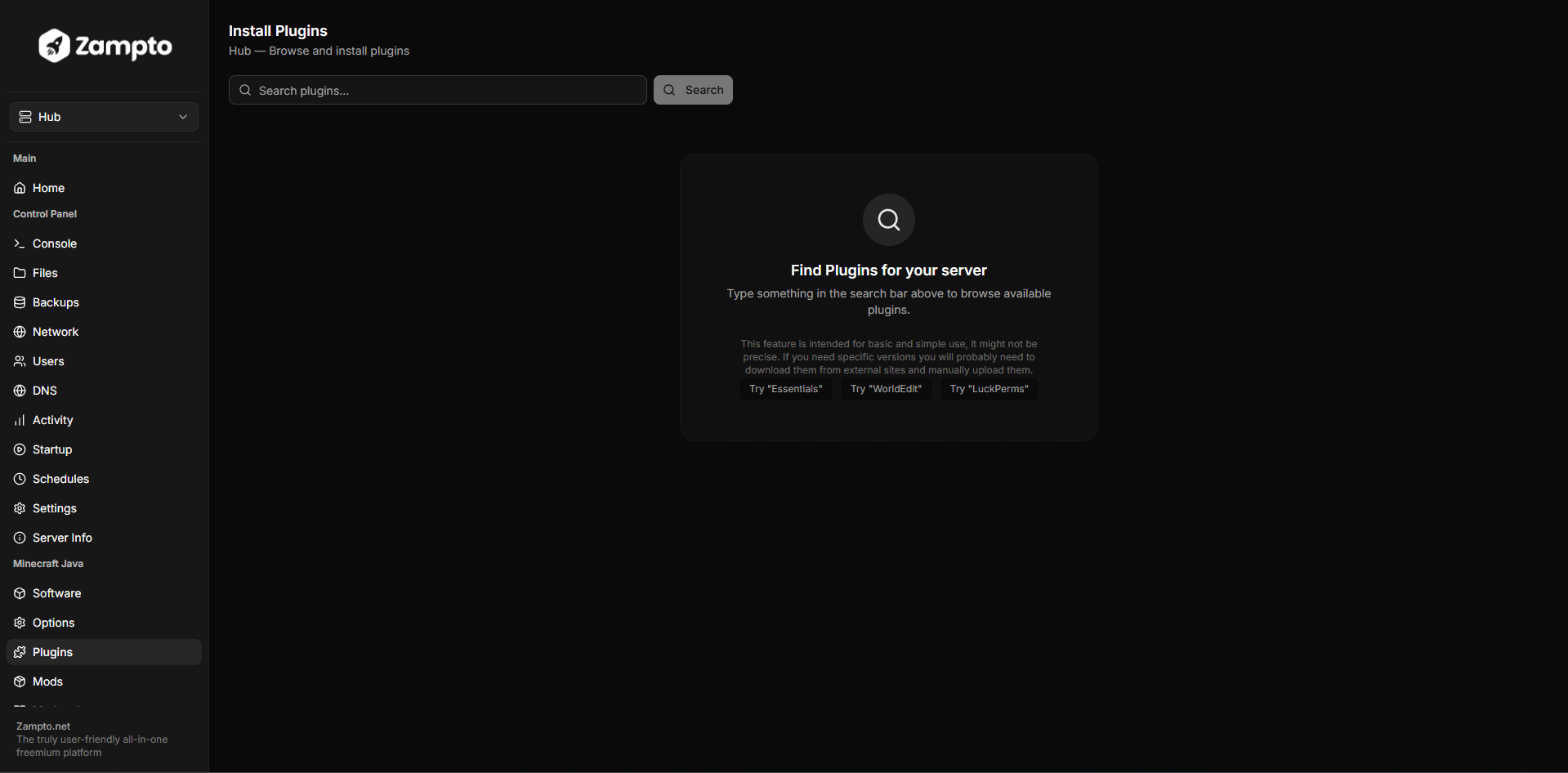
- Once you find the plugin you want, click on it to view available versions, compatibility information, and additional details.
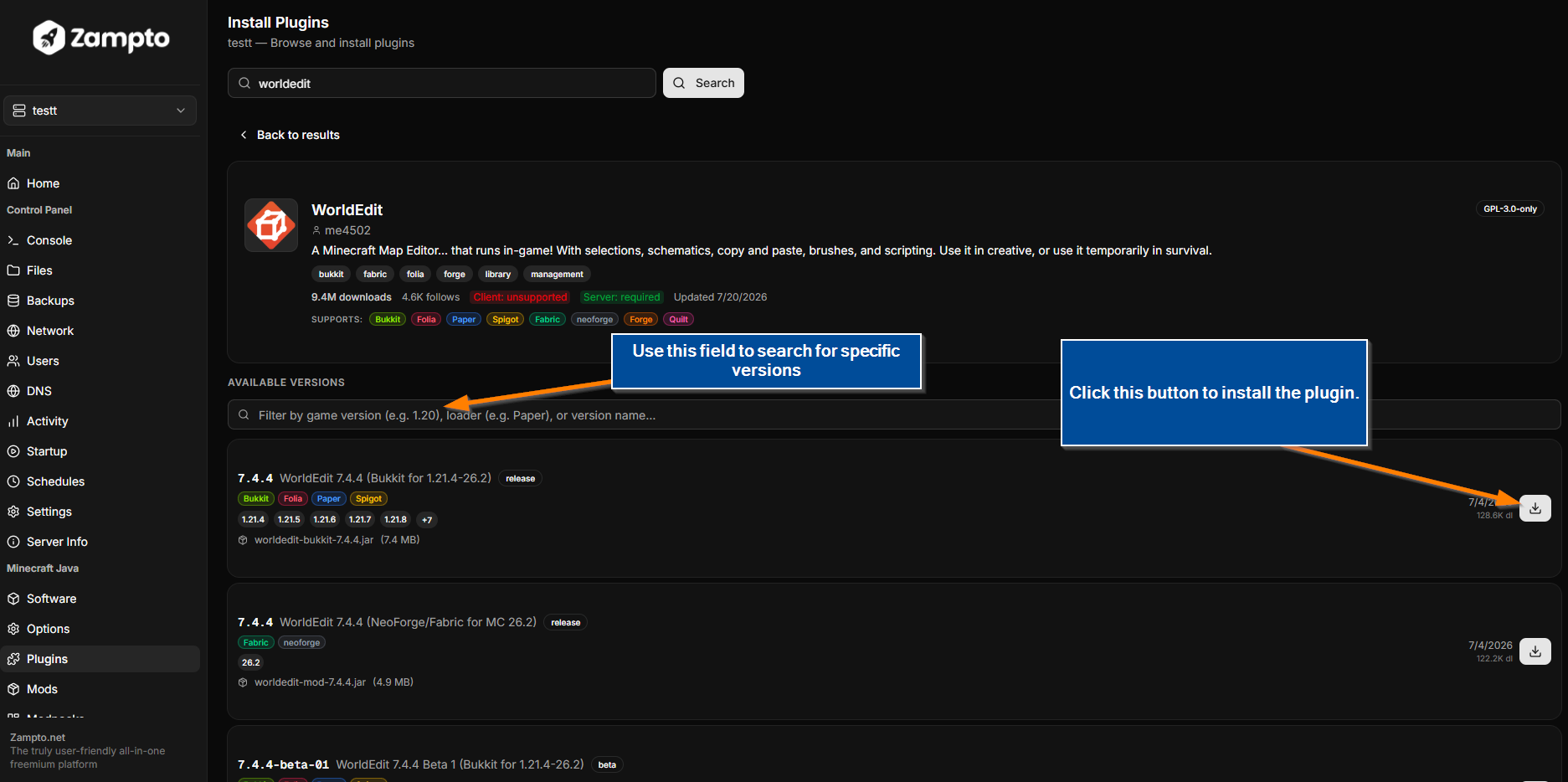
-
Select the correct version and make sure it is compatible with your server.
Then click the Install button to install it on your server.

-
Once the plugin has been installed, go to the Console and click Start to start the server.
If the server is already running, click Restart to restart it and apply the changes.
Your plugin should now be installed and ready to use.
Method 2: Manually Uploading Plugin Files
Installation Steps
-
Log in using the following link:
-
Create a Minecraft server using the following link:
Create and Host a Minecraft Java Server
- Make sure to create the server using the Minecraft Java Generic server type.
-
Once your Minecraft server has been created, open the Control Panel.
From the sidebar, navigate to the Software section under the Minecraft Java category and install the software you want to use, for example:
-
Minecraft Spigot 1.21.1
-
Minecraft Paper 1.21.5
-
Select the Minecraft version:
Select the software build you want to install.
When ready, click the Install button. Usually, the latest version (the first option) is recommended.
Confirm the installation:
-
You must accept the Minecraft EULA.
-
If you do not want Zampto.net to delete all existing server files before installation, enable the "No Bulk-Delete (Skip removing existing files)" option.
-
Download the plugin(s) you want to install from a trusted source.
For example:
and other plugin repositories.
-
After downloading the
.jarfiles, open your server files and navigate to thepluginsfolder. If the folder does not exist, create a new folder named:
pluginsin the root (/) directory of your server, then upload your plugin .jar files there.
-
Done!
Start or restart your server to apply the changes.
Troubleshooting
If you encounter an error, try the following solutions:
Incompatible Software
Check the red error messages in the server Console.
For example:
[13:09:56 ERROR]: [DirectoryProviderSource] Error loading plugin: java.lang.IllegalArgumentException: Directory 'plugins/LuckPerms-Forge-5.5.57.jar' does not contain a paper-plugin.yml or
plugin.yml! Could not determine plugin type, cannot load a plugin from it!
java.lang.RuntimeException: java.lang.IllegalArgumentException: Directory 'plugins/LuckPerms-Forge-5.5.57.jar'
does not contain a paper-plugin.yml or plugin.yml! Could not determine plugin type,
cannot load a plugin from it!
In this example, the error means that the plugin was built for the wrong software.
The server is running Paper, but the downloaded plugin is made for Forge.
To fix this:
-
Delete the incorrect plugin file from the
pluginsfolder. -
Download the correct version of the plugin for your server software.
-
Upload the correct
.jarfile manually, or install the correct plugin using Method 1.
Incorrect Minecraft Version
Make sure that the plugin version matches your server's Minecraft version.
For example:
-
A plugin made for Minecraft 1.21.x may not work correctly on a 1.20.x server.
-
A plugin made for older Minecraft versions may require a different server software version.
Always check the plugin documentation before installing it.
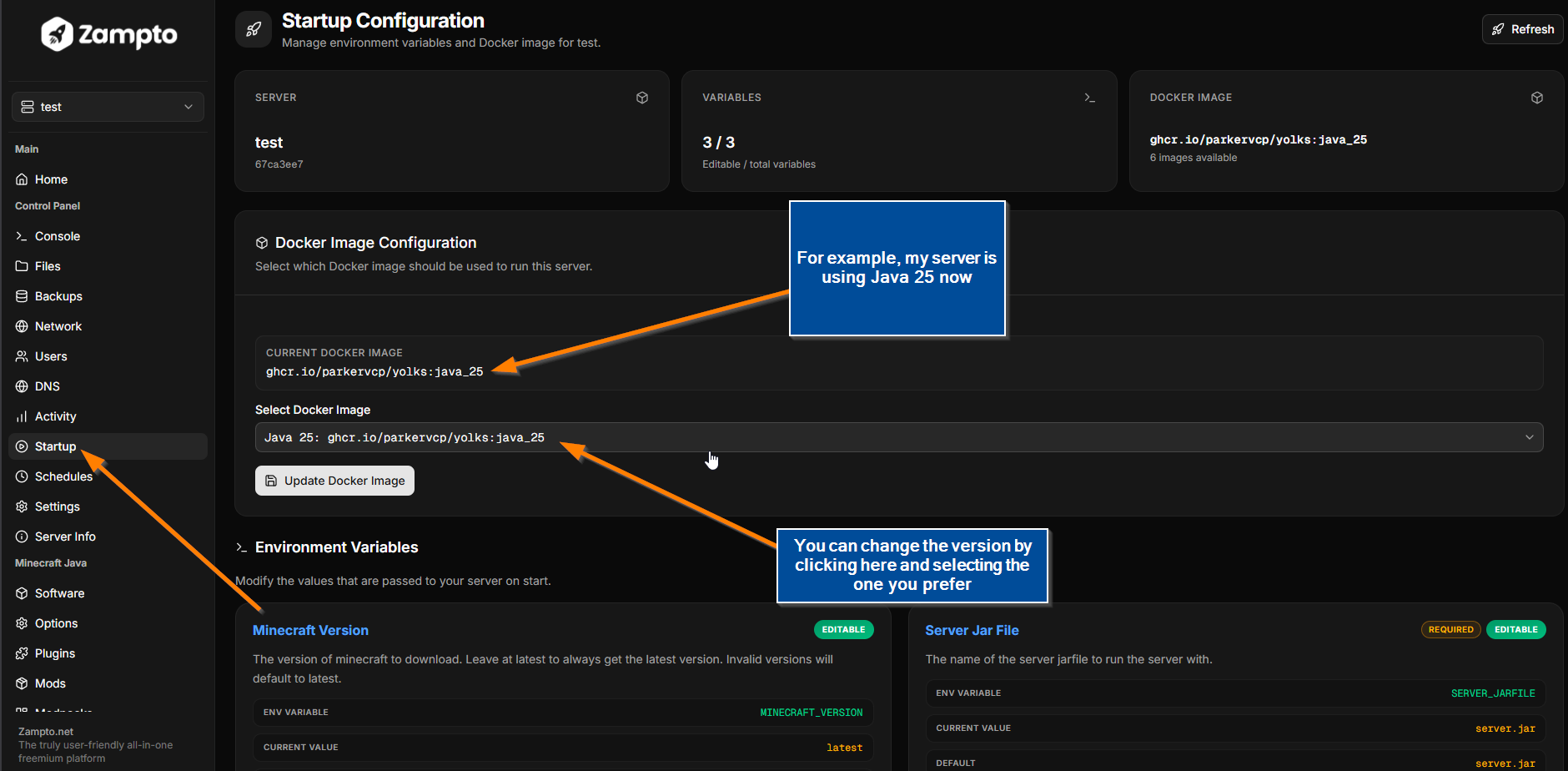
Check Your Server Java Version
Some Minecraft versions require specific Java versions.
You can check the Java version your server is using from the Startup page in the Control Panel.
Make sure that your installed plugins support the Java version required by your server.
| Java Version | Minecraft Versions |
|---|---|
| Java 8 / Java 11 | Minecraft 1.8 - 1.16.5 |
| Java 16 | Minecraft 1.17 - 1.17.1 |
| Java 17 | Minecraft 1.18 - 1.20.4 |
| Java 21 | Minecraft 1.20.5 - 1.21.x |
| Java 25 | Minecraft 26.1+ / future versions |
Wrong Server JAR File
This error can happen when the server JAR file has a different name than the one configured in the startup settings, or when the file is missing.
Example error:
[Zampto Daemon]: Finished pulling Docker container image
container~ java -version
openjdk version "21.0.11" 2026-04-21 LTS
OpenJDK Runtime Environment Temurin-21.0.11+10 (build 21.0.11+10-LTS)
OpenJDK 64-Bit Server VM Temurin-21.0.11+10 (build 21.0.11+10-LTS, mixed mode, sharing)
container~ java -Xms128M -XX:MaxRAMPercentage=95.0 -Dterminal.jline=false -Dterminal.ansi=true -jar paper-1.21-130.jar
Error: Unable to access jarfile paper-1.21-130.jar
Server is offline
[Zampto Daemon]: ---------- Detected server process in a crashed state! ----------
[Zampto Daemon]: Exit code: 1
[Zampto Daemon]: Out of memory: false
[Zampto Daemon]: Aborting automatic restart, last crash occurred less than 60 seconds ago.
To fix this:
-
Open your server files.
-
Look for the file mentioned in the error message.
For example, if the error says:
Unable to access jarfile paper-1.21-130.jarcheck whether a file named:
paper-1.21-130.jarexists in your server directory.
-
If the file does not exist, but another
.jarfile is available and you want to use it:-
Go to the Startup page.
-
Find the Server Jar File variable.
-
Change its value to the correct
.jarfile name.
-
-
Another possible solution is to reinstall the server software.
Before reinstalling, make sure to create a backup of your server files.
-
Alternatively, you can manually upload the correct server
.jarfile.
If you need help, please contact us.